
AI User Prompt Generator version 2 (Beta)
Overview
The User Prompt Generator V2 module allows us to create, organize, and generate AI-driven prompts in a structured and reusable format. It combines manual input with an automated workflow so that prompts are aligned with user intent, audience, and business context.
All prompts are centrally managed within the dashboard and categorized for easy access.
A. How to get to the User Prompt Generator?
1. Click on the Reports menu from the side navigation.
| 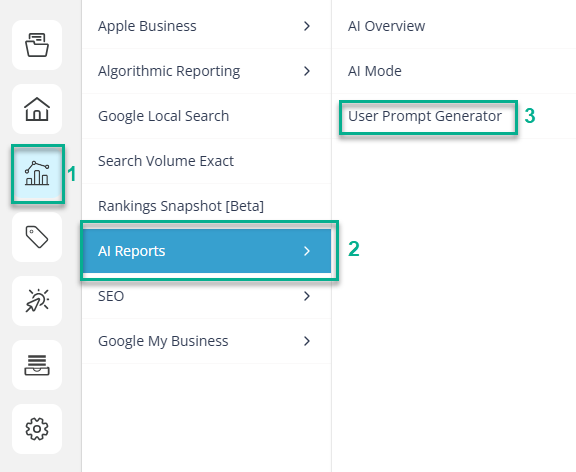 |
| 2. Click on AI Reports menu item. | |
| 3. Click on User Prompt Generator menu item. |
Dashboard Overview
The User Prompt Dashboard is the primary workspace where we view and manage all prompts.
At the top of the dashboard, we see key summary metrics:
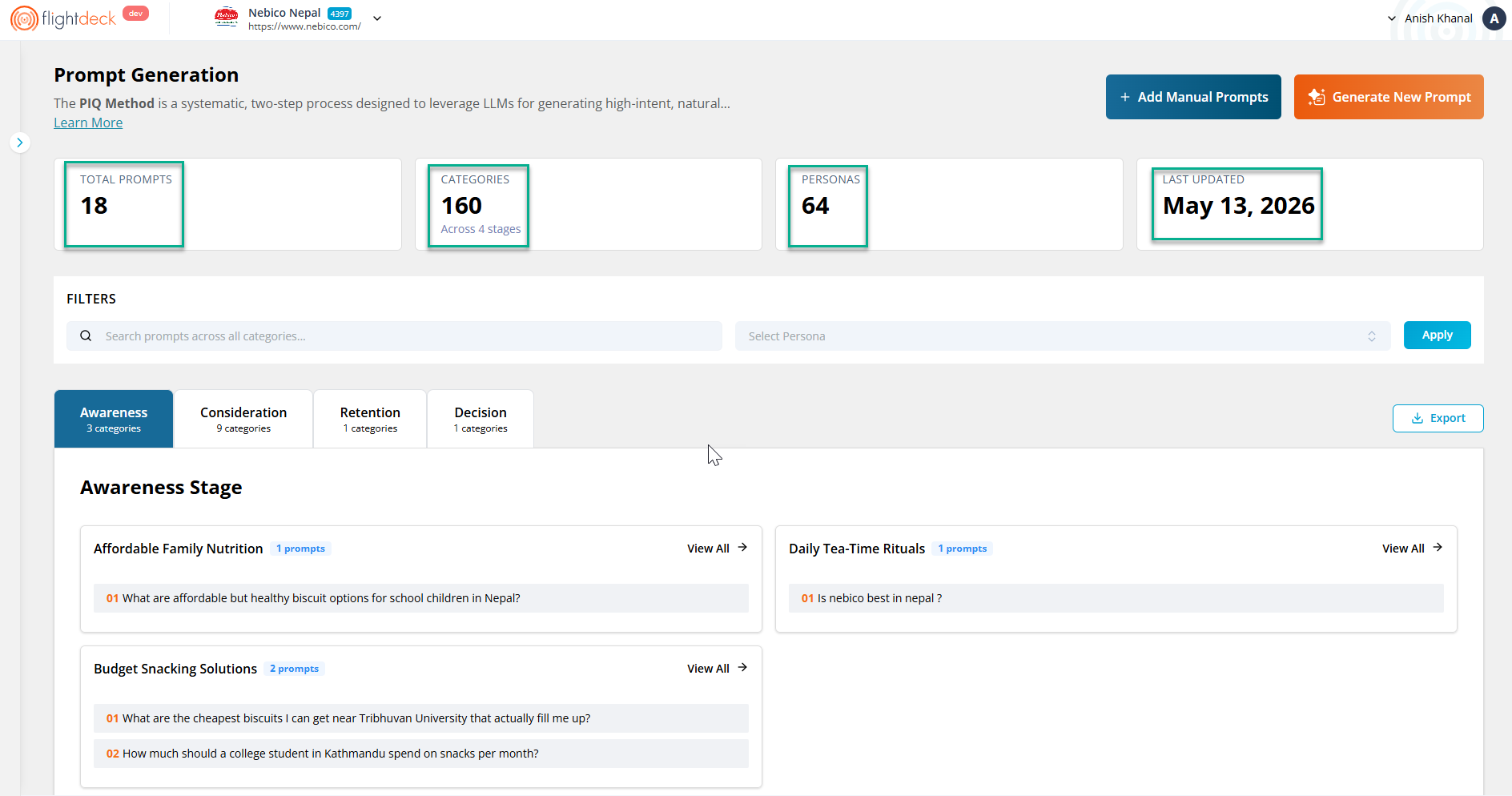
- Total Prompts shows the total number of prompts available in the system.
- Categories indicate how many categories exist across all funnel stages.
- Personas reflects the total number of audience profiles created.
- Last Updated shows when the dashboard was last modified.
B. How prompts are organized?
Prompts are not stored randomly. They are structured in a hierarchy:
Funnel Stage → Category → Prompt
We can navigate prompts using four funnel stages:
- Awareness – Early-stage informational queries
- Consideration – Evaluation and comparison queries
- Decision – Purchase or action-oriented queries
- Retention – post-purchase or engagement queries
Each stage contains multiple categories, and each category contains a set of prompts.
Filtering and navigation
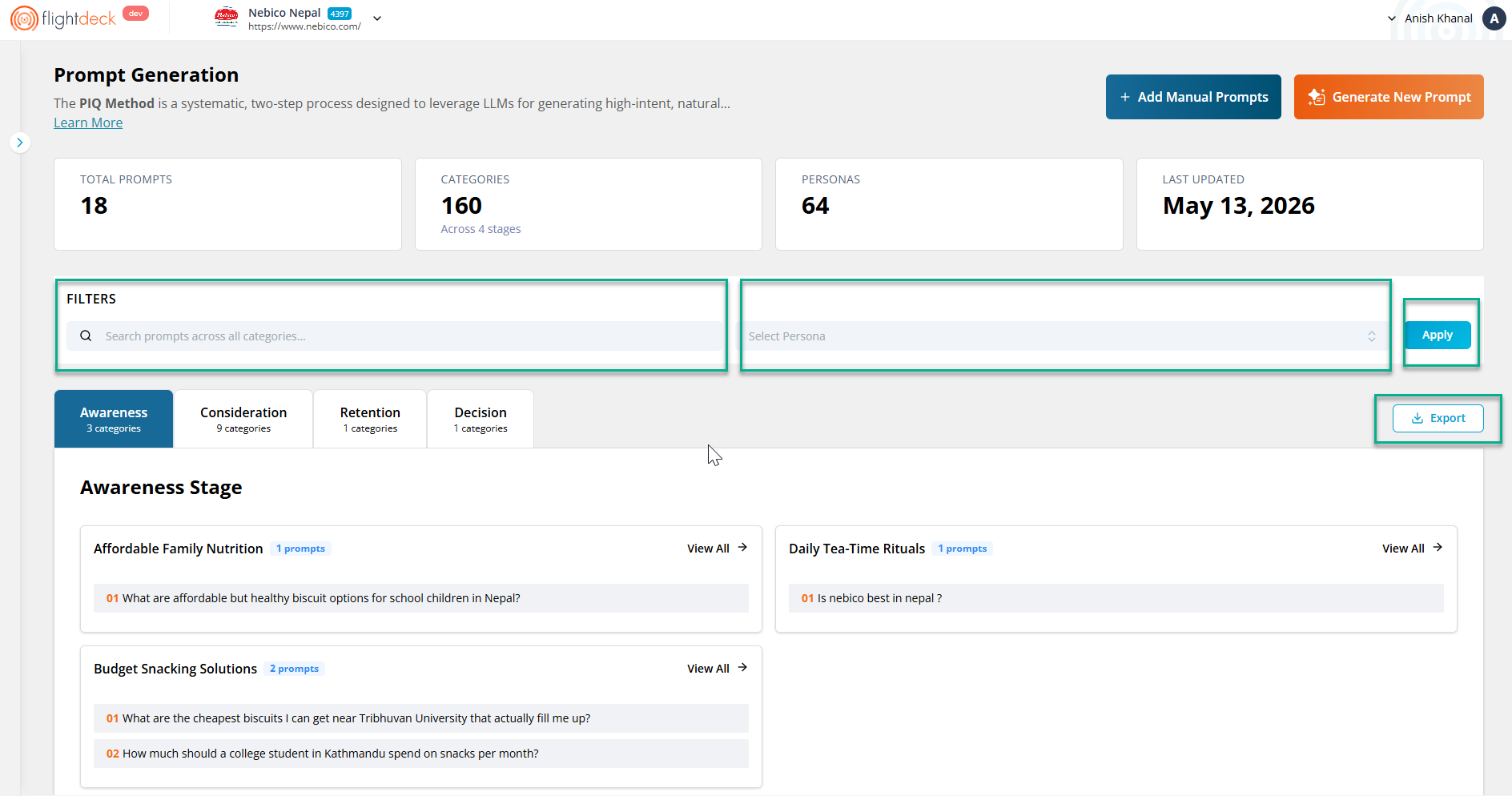
To help us work efficiently, the dashboard provides:
- A search bar to quickly locate prompts using keywords
- A persona filter to view prompts relevant to a specific audience
- An Apply button to activate selected filters
- An Export option to download prompt data
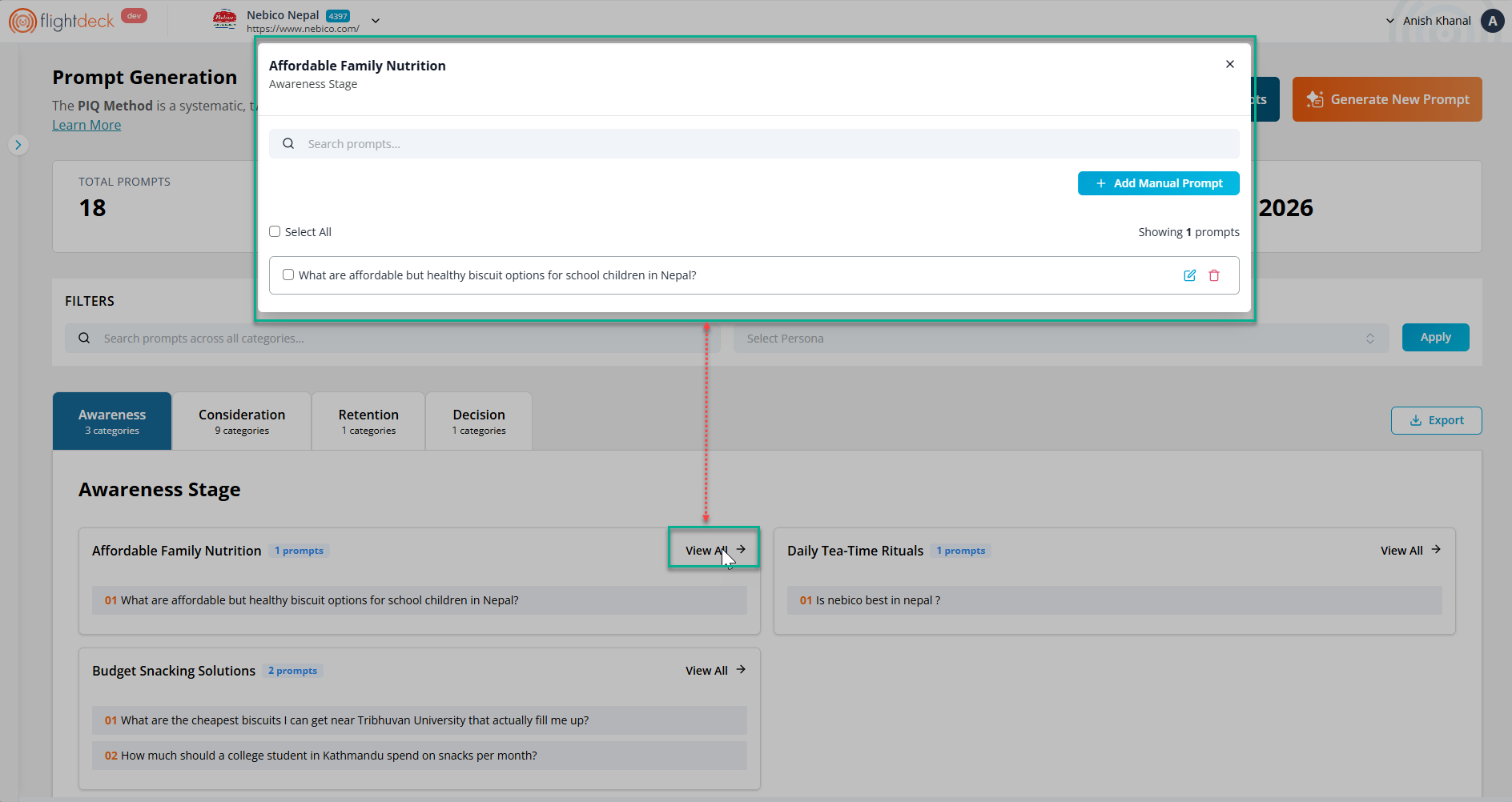
Within each category, we can:
- View a preview of prompts
- Click “View All” to expand and see the complete list
C. Dashboard Actions
On the top-right side, we have two key actions that drive the workflow:

- Add Manual Prompts
- Generate New Prompt
Each action serves a distinct purpose in building and managing prompts.
1. Add Manual Prompts
This option is used when we already know the prompts we want to create.
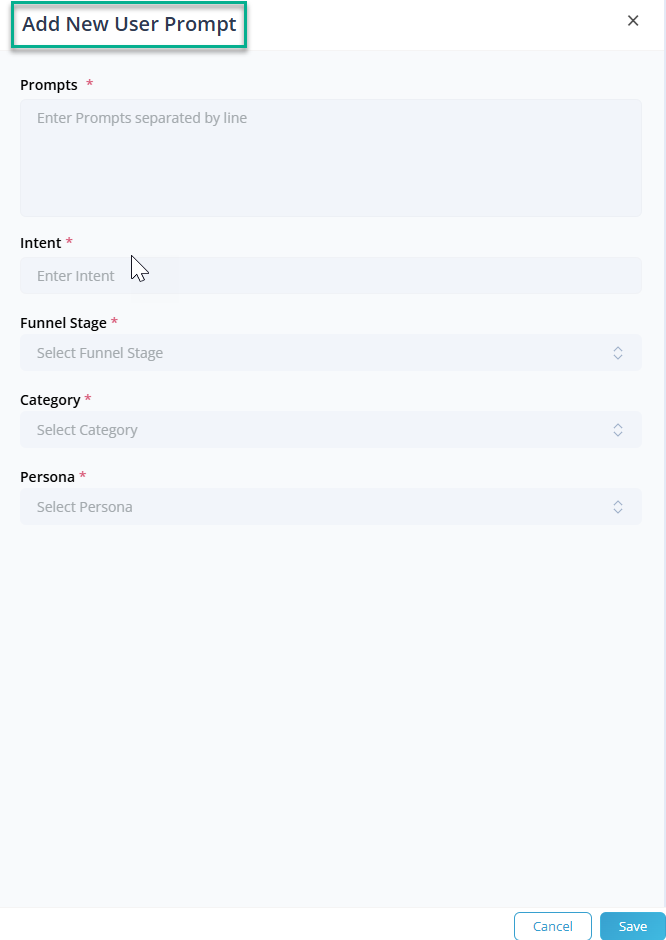
We enter the prompt text and define its structure by selecting:
- The intent of the prompt
- The funnel stage it belongs to
- The category it fits under
- The persona it targets
This ensures that even manually created prompts are properly organized and easy to retrieve later.
2. Generate New Prompt
This is the core feature of the module and is used to generate prompts automatically through a guided process.
It consists of four steps:
Step 1: Brand Intelligence
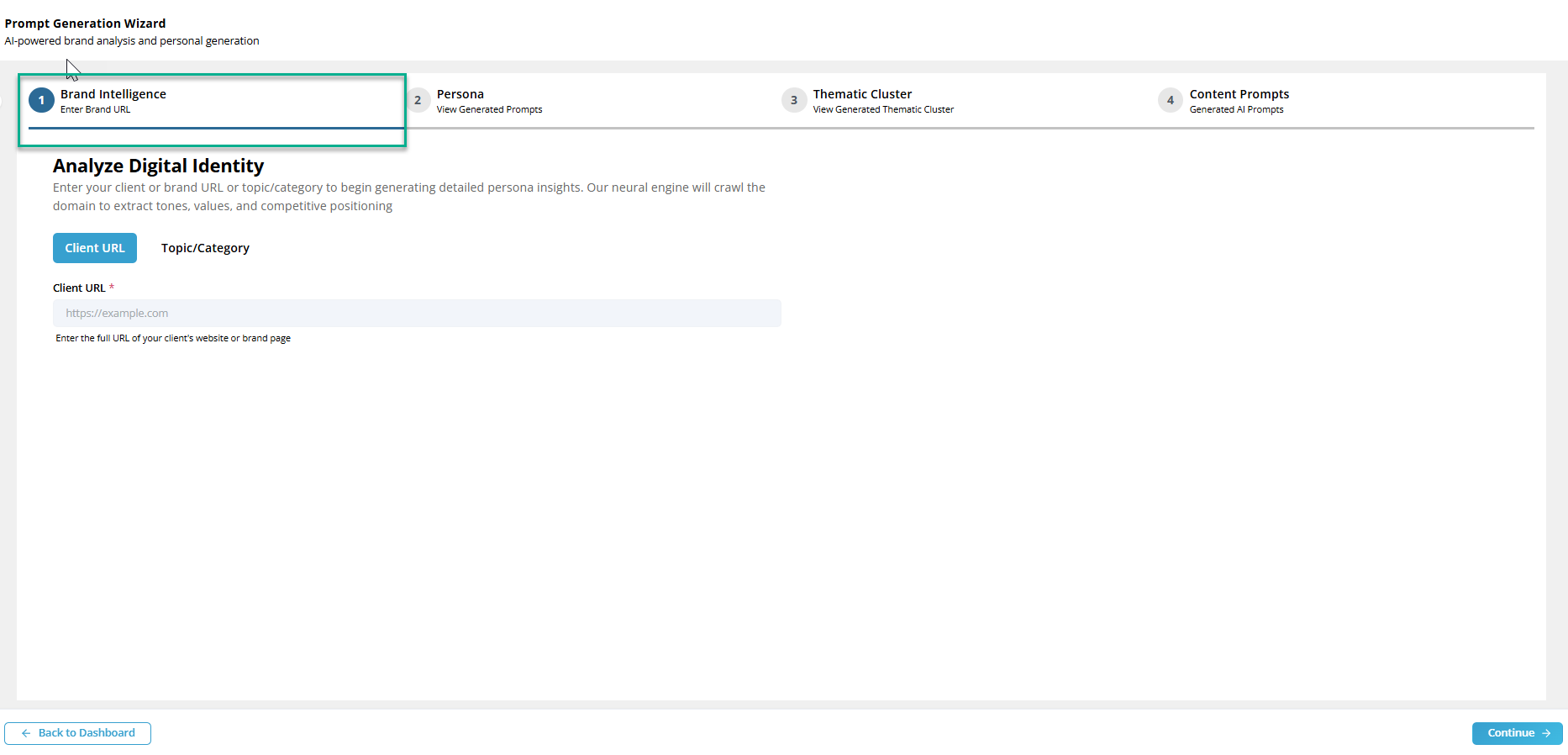
We begin by entering a client's URL or a Topic/Category.
The system analyzes this input by crawling and extracting relevant information such as client's URL or a Topic/Category. This step lays the foundation for all subsequent outputs.
Step 2: Persona
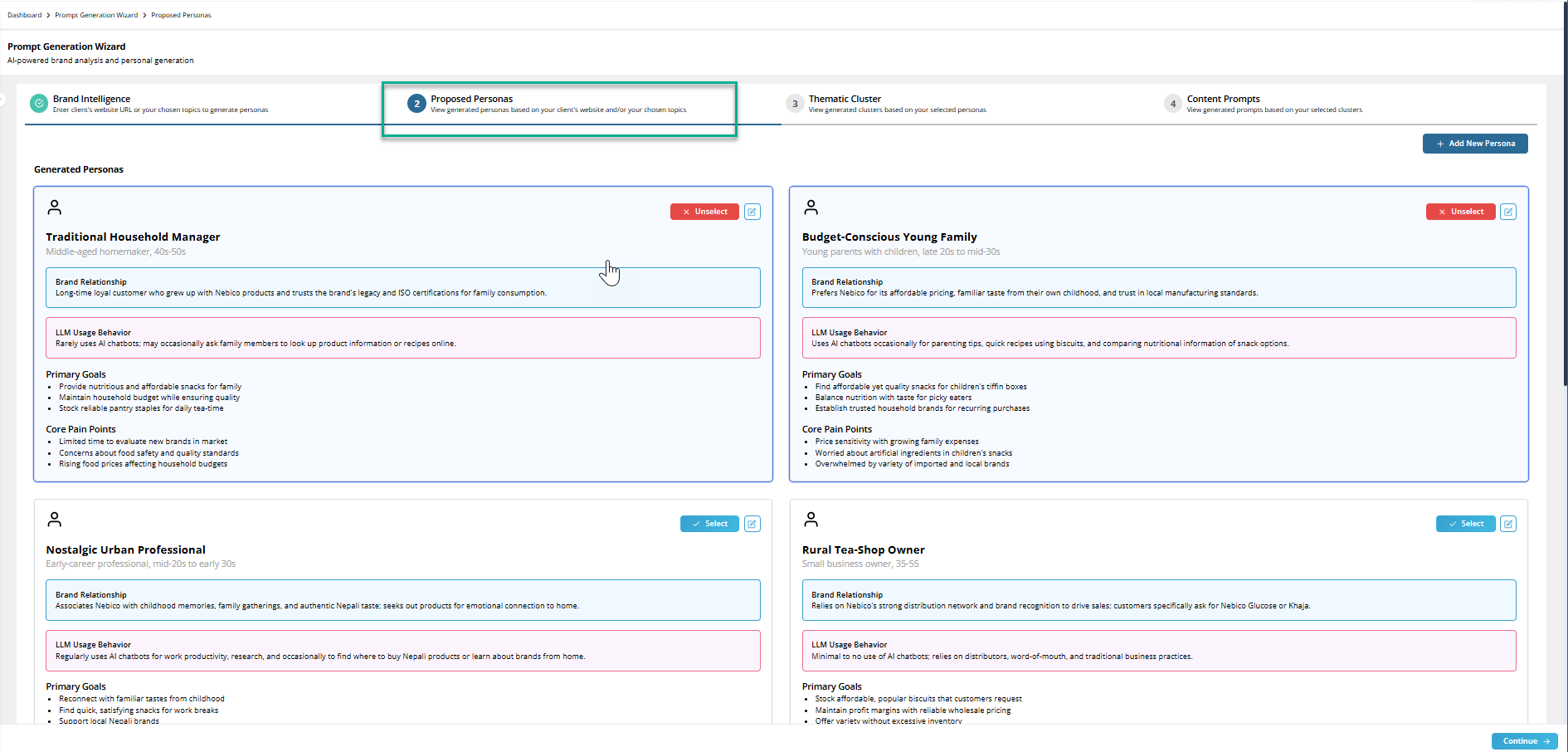
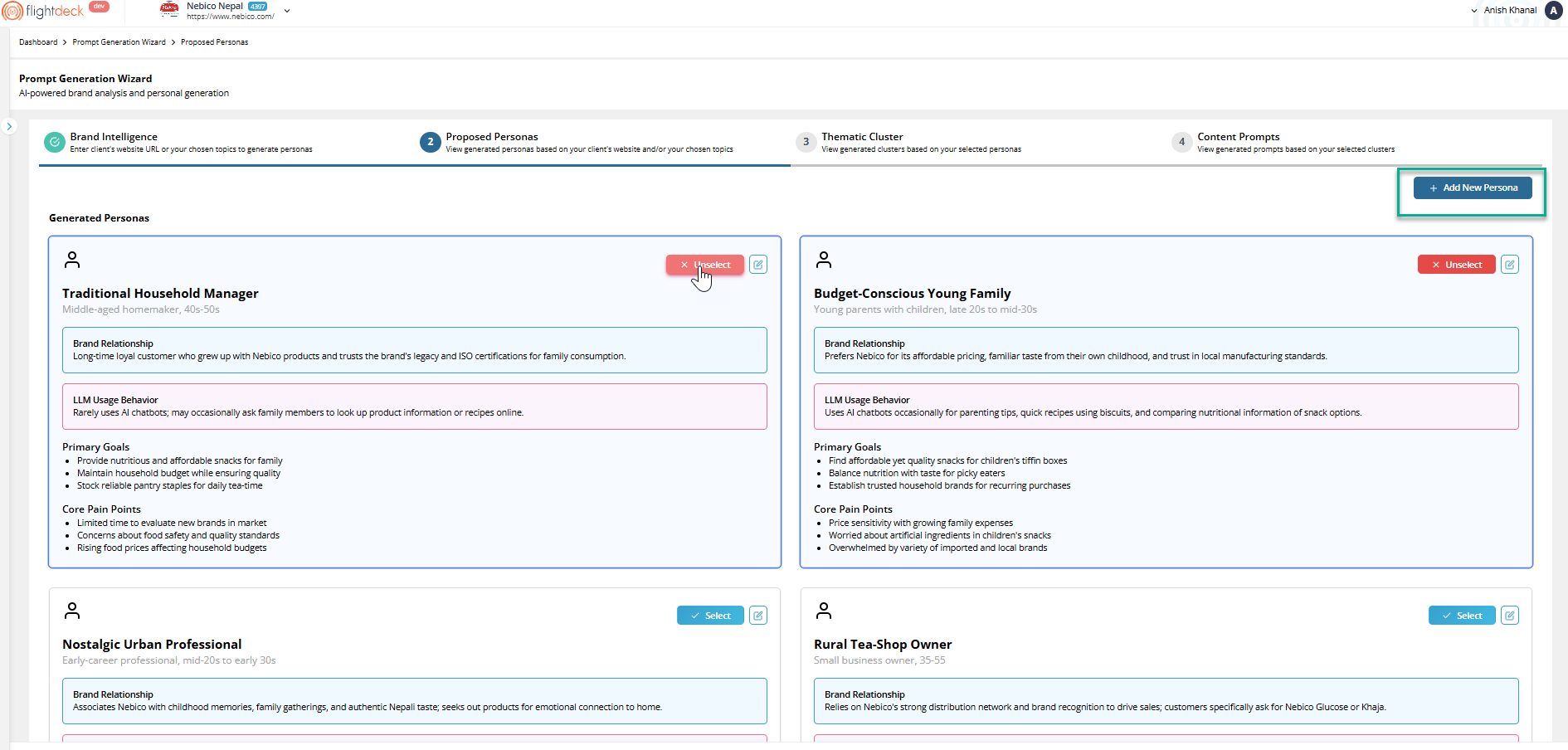
Based on the analysis, the system generates multiple personas. Multiple factors like Brand Relationship, LLM Usage Behavior, Primary Goals and Core Pain Points are generated by systems and are individually unique to each other's.
Meanwhile,
Brand Relationship - Represents the persona’s connection, trust, and overall relationship with the brand, including purchasing habits and brand perception.
LLM Usage Behavior - Defines how the persona interacts with AI tools or chatbots for searches, recommendations, comparisons, and information gathering.
Primary Goals - Represents the key needs, motivations, and objectives of the generated persona when selecting or interacting with the brand’s products or services.
Core Pain Points - Highlights the major concerns, challenges, or frustrations faced by the persona that may influence their purchasing decisions or overall brand experience.
We review these suggestions and:
- Select the most relevant persona(s)
- Edit them if needed
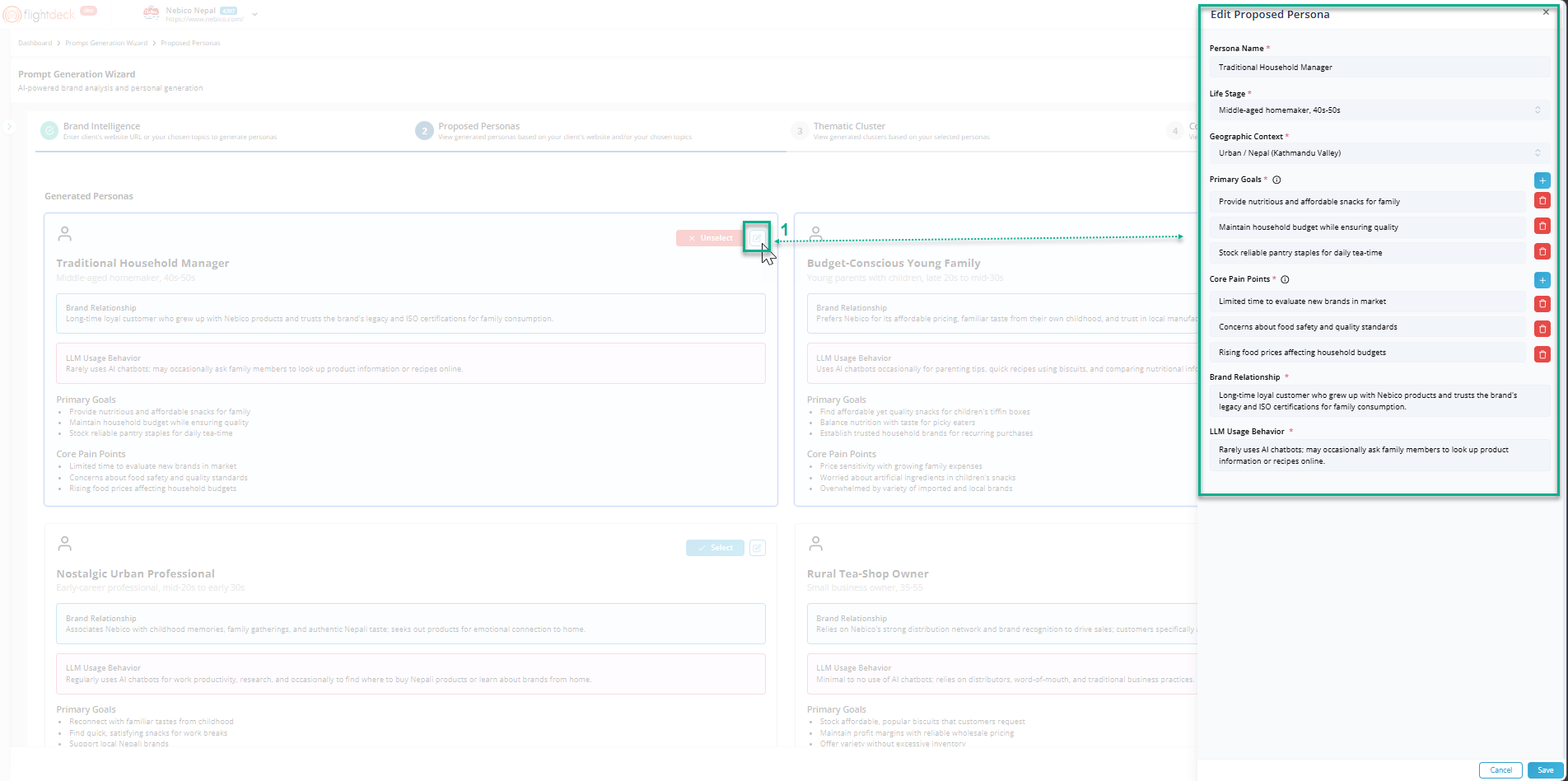
During this step, the system also aligns the prompts with appropriate funnel stages based on user intent.
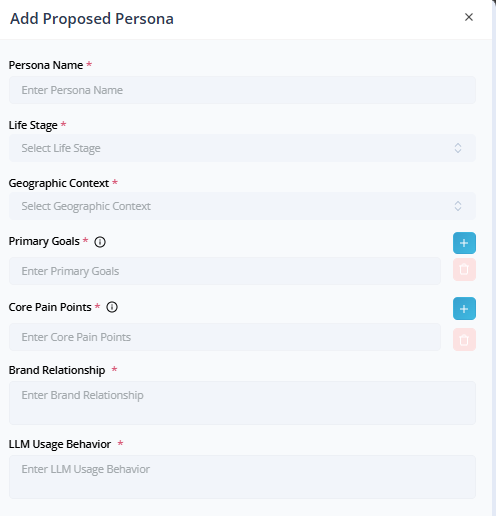
- Or create a new persona by manually filling the form by clicking this button
Which opens a form including all the fields require to make a persona.
Step 3: Thematic Cluster
Next, the system groups insights into thematic clusters.
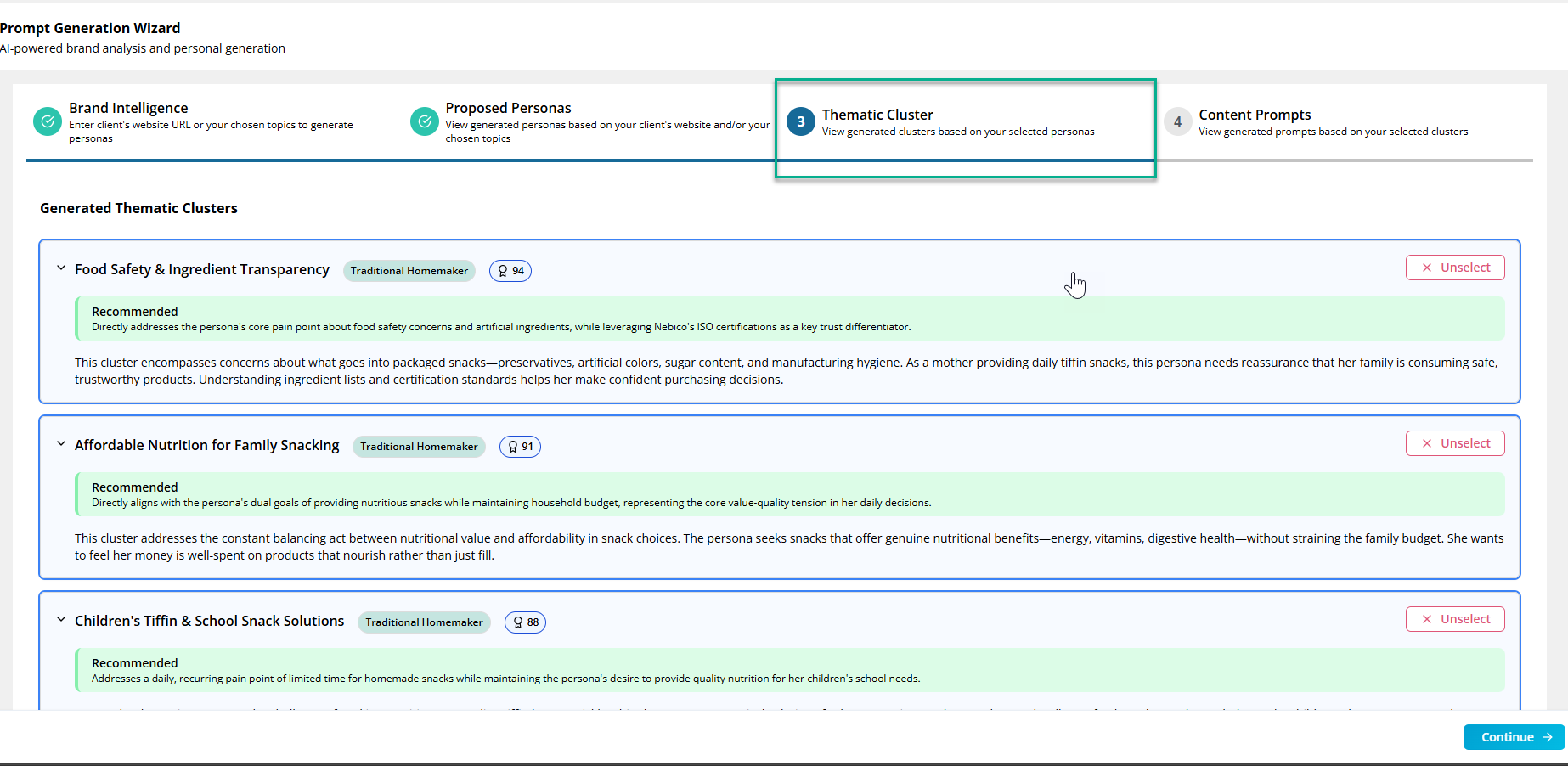
These clusters represent key areas such as:
- User needs
- Content opportunities
- Common problems or interests
We select the clusters that best match our objective. These selections directly influence the type of prompts generated in the next step.
Note: Top 5 cluster with highest cluster impact score are auto selected.

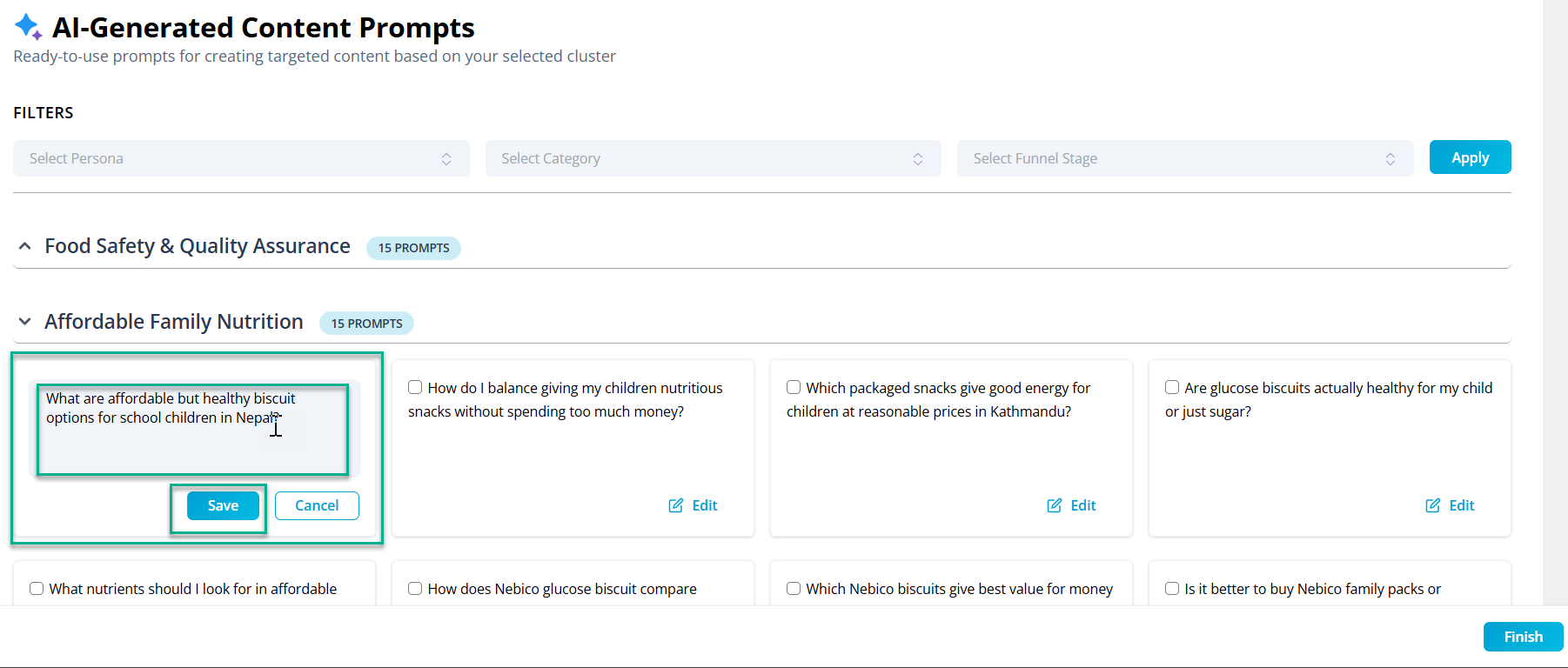
Step 4: Content Prompts
The system generates a list of prompts based on:
- The initial input (URL or topic)
- Selected persona
- Selected thematic clusters
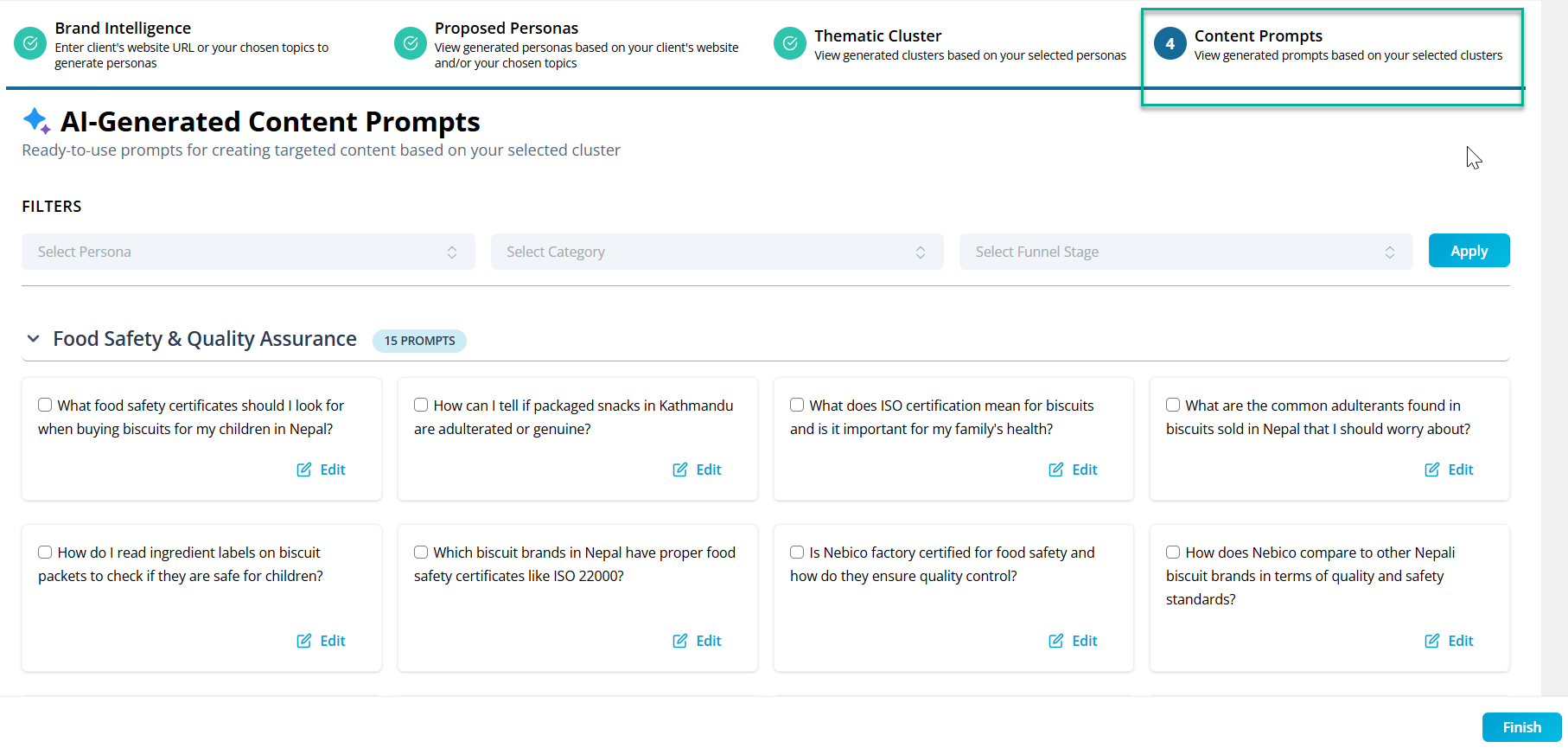
We can review, edit, and finalize the prompts at this stage.
Meanwhile we can edit by clicking a "Edit" button which opens an editable prompt field.
D. Final Output in Dashboard
Once we complete the process, the selected prompts are automatically saved in the dashboard.
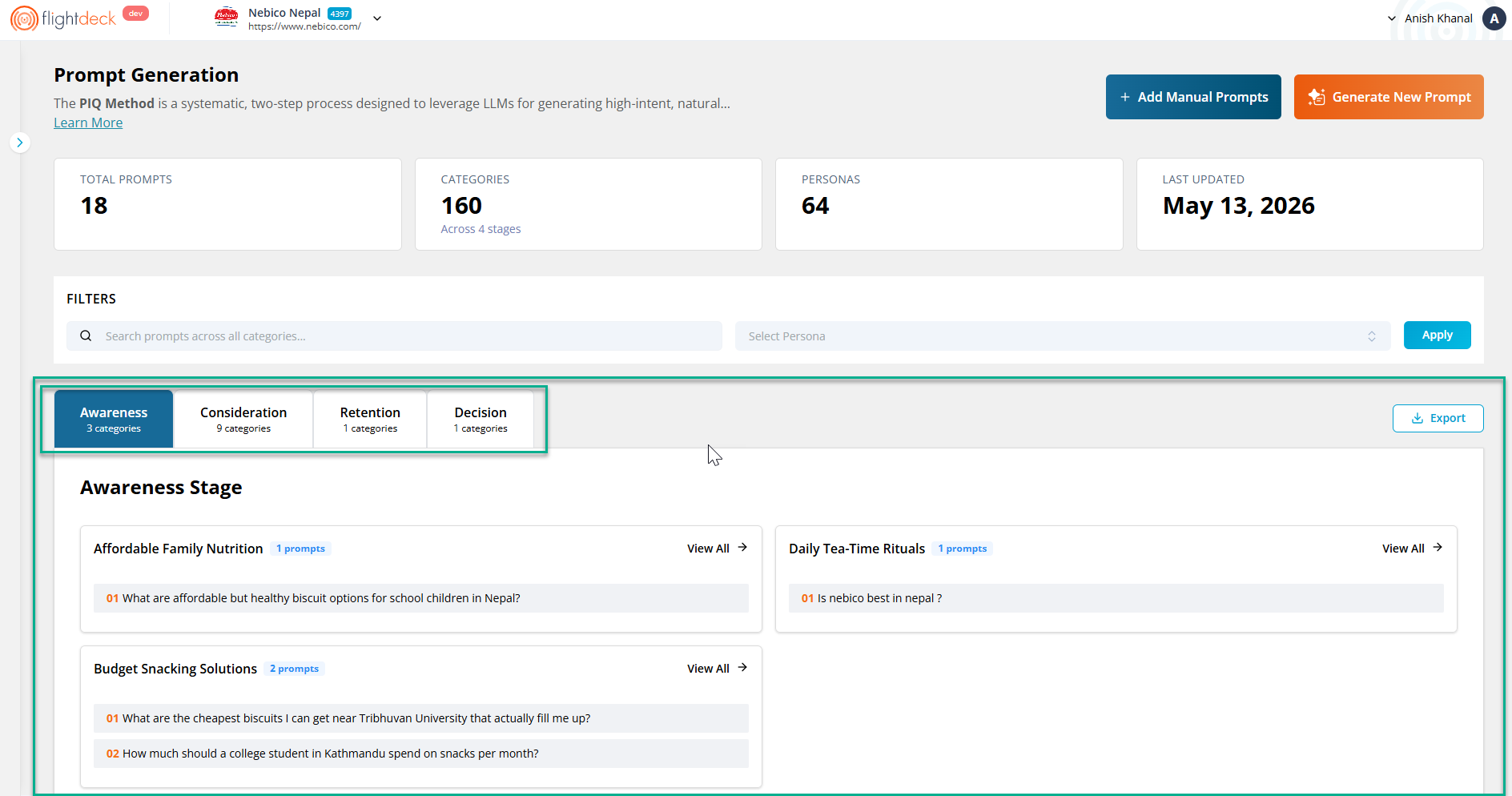
They are placed under the correct:
- Funnel stage
- Category
- Persona
This ensures consistency and makes them easy to find and reuse later.