
Report Setting
Overview
The Report Settings feature—available within both the Search Engine Visibility (SEV) and Share of Voice (SOV) modules—now includes a direct Google Sheets export capability. It allows users to seamlessly authorize Google Sheets, input target Sheet IDs, and configure multiple, customized export paths to segregate different reports and data. You can choose between running on-the-spot exports or scheduling automated periodic updates (weekly or monthly) that append new data over time, creating a reliable, live data source perfectly suited for Looker Studio dashboards.
Accessing Report Settings
- Navigate to the SEV or SOV page.
- Select Report Settings.
- If Google Sheets authorization has not been completed, an authorization prompt is displayed.
- Complete the authorization process.
- Return to the SEV or SOV page and select Report Settings again.
- Select Add Setting to create a new report configuration.


Authorization
Google Sheets authorization is required before creating report settings.
Authorization Prompt
When Report Settings is opened, the system checks whether Google Sheets authorization has been configured.
If authorization is not available, the following message is displayed:
You are not authorized
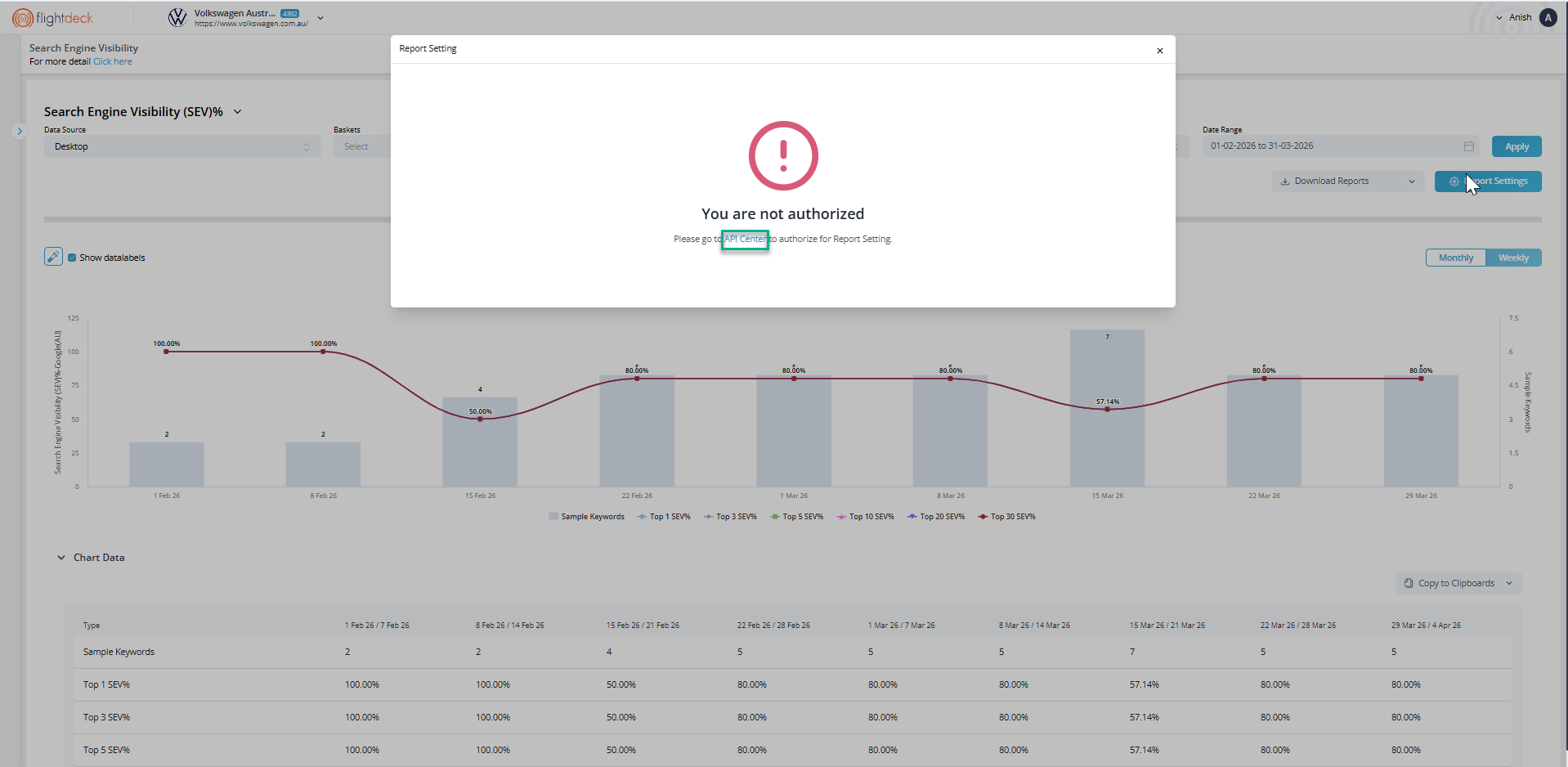
The popup provides a direct link to the API Center to complete the authorization process.
Google Sheets Authorization Process
Step 1: Open API Center
Select the API Center link from the authorization popup.
Step 2: Select Google Sheets
Within the API Center, select the Google Sheets integration.
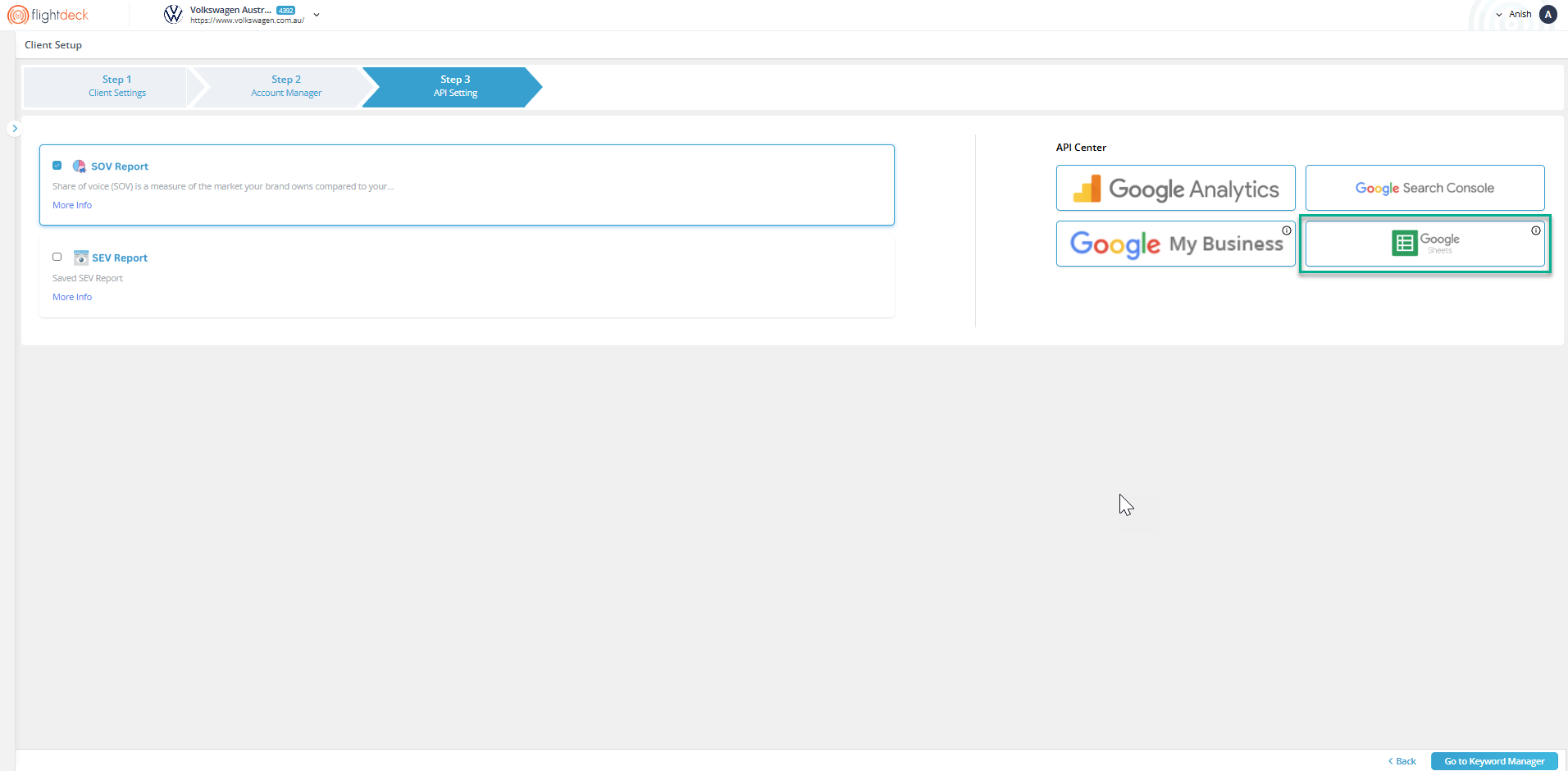
Step 3: Start Authorization
The integration status is displayed as Unauthorized.
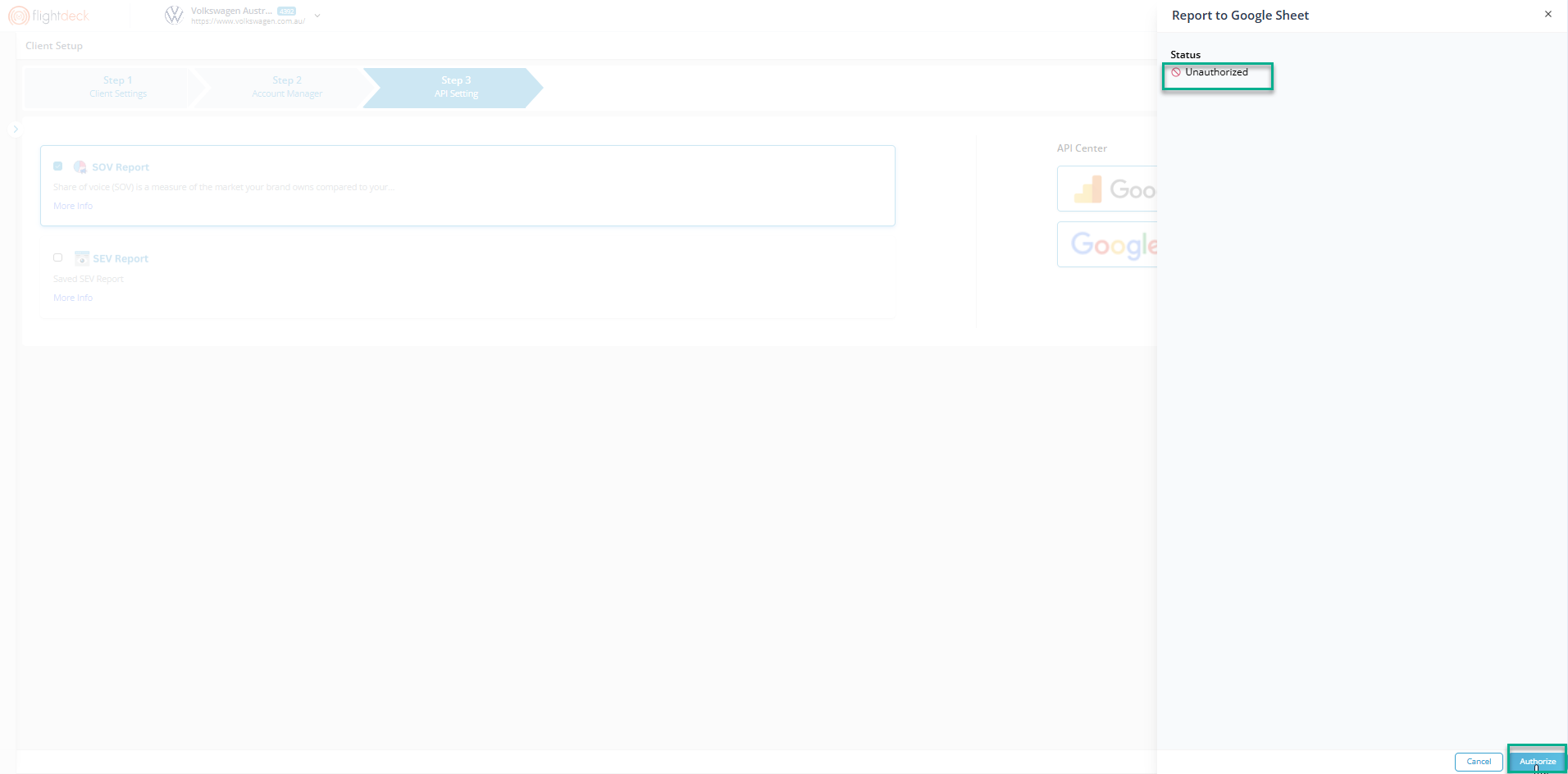
Select Authorize to begin the authorization process.
Step 4: Complete Google Authorization
Follow the Google authorization workflow:
- Select the required Google account
- Review requested permissions
- Grant access
- Save the authorization configuration
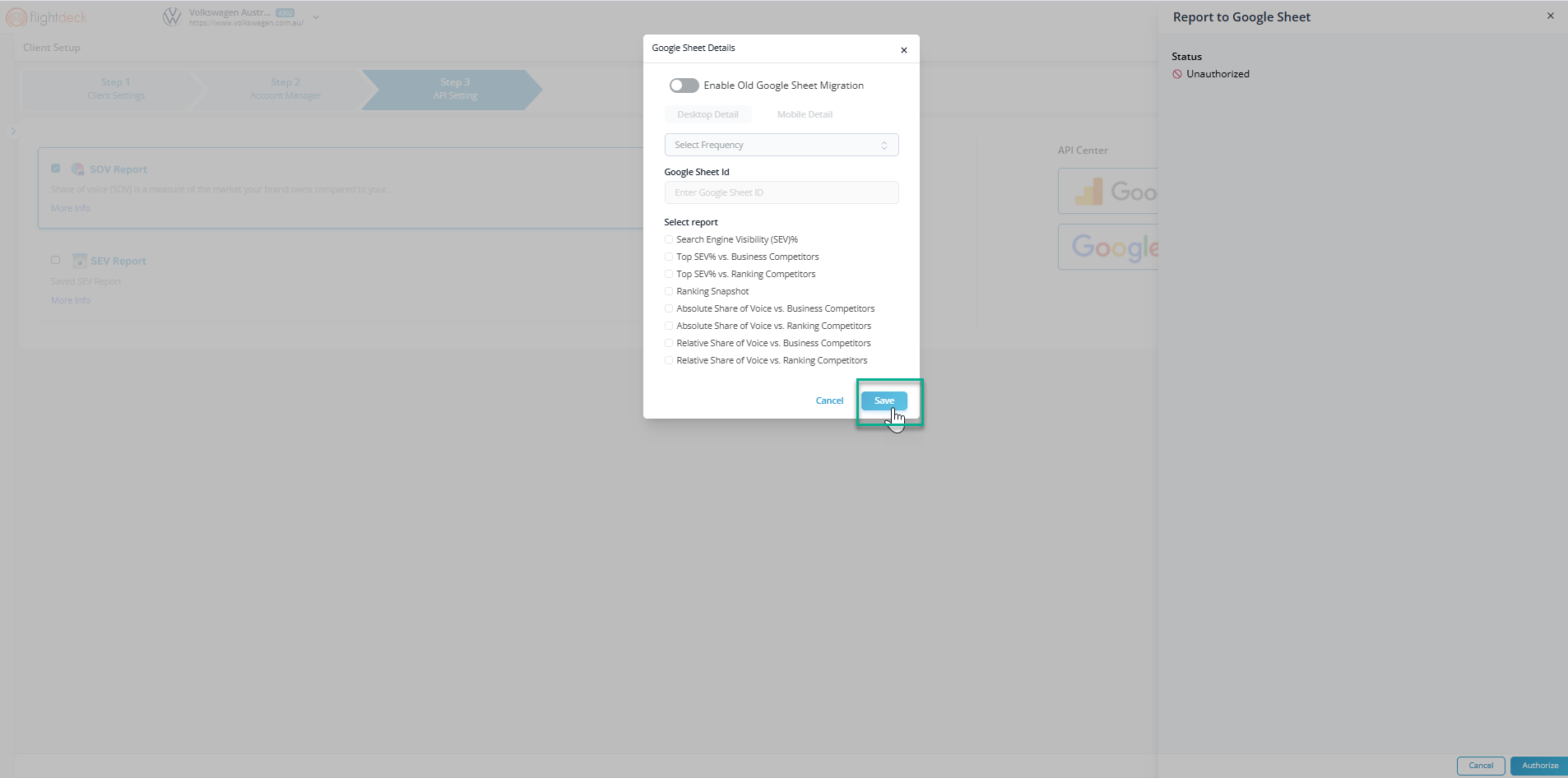
Step 5: Authorization Success
After successful authorization:
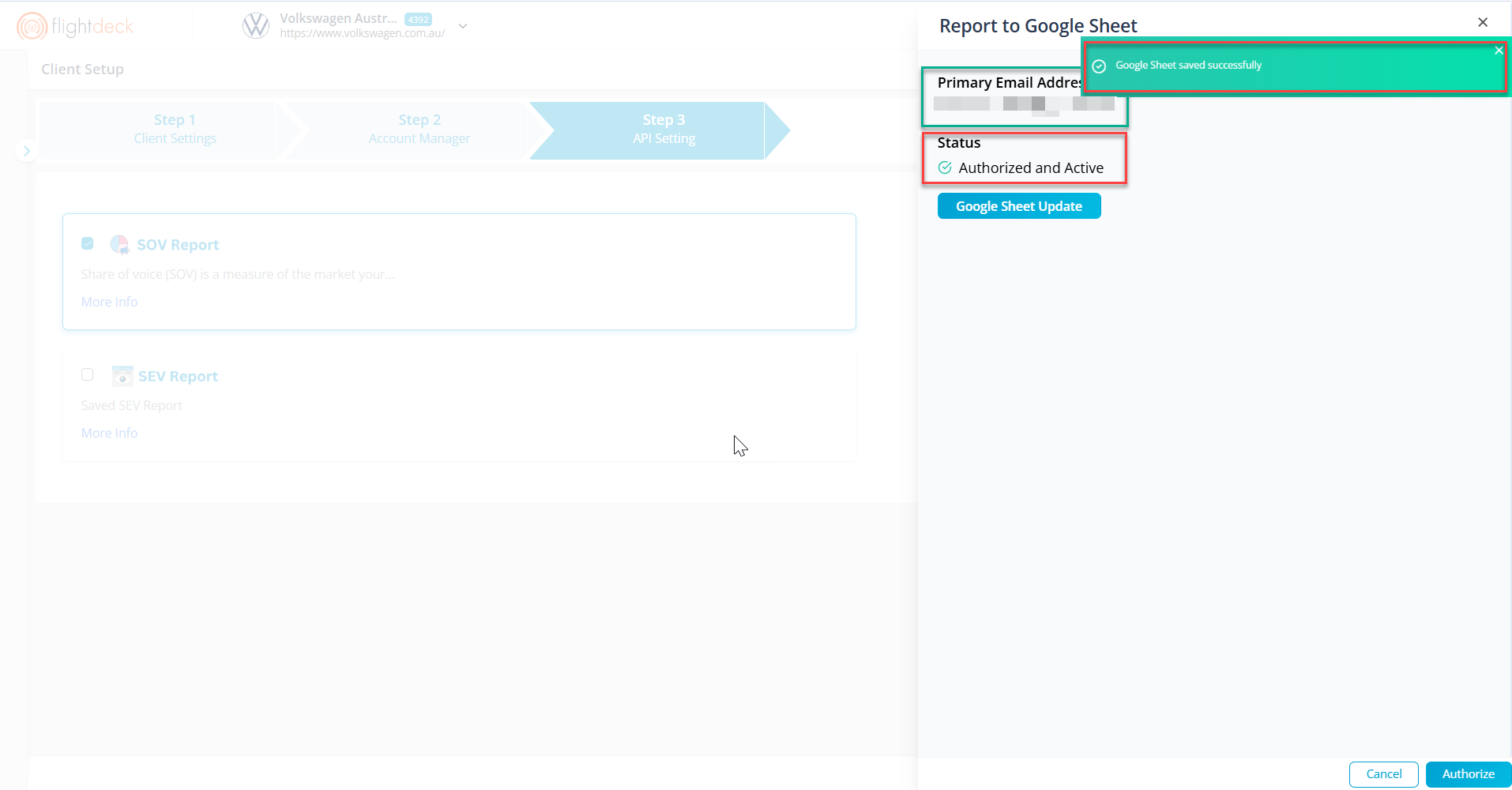
Primary Email Address
Displays the Google account currently used to authorize the Google Sheets integration.
This email address identifies the account that FlightDeck uses to access and generate reports within Google Sheets.
If a different Google account needs to be used, update the Google Sheets authorization using the desired account.
Confirmation Message
A confirmation message is displayed:
Google Sheet saved successfully
Status
The integration status changes to:
Authorized and Active
This indicates that the Google Sheets authorization has been completed successfully and the integration is ready for report generation.
This confirms that Google Sheets is connected and ready for report generation.
Google Sheet Usage
Google Sheets is used in two independent areas within the platform.
Area | Purpose |
|---|---|
API Center | Authorizes and connects the Google account |
Report Settings | Defines the destination spreadsheet for generated reports |
Important:
- Authorizing Google Sheets does not automatically configure a report destination.
- Each report setting can use a different Google Sheet ID.
- Report destination sheets are managed independently from API authorization.
Creating a Report Setting
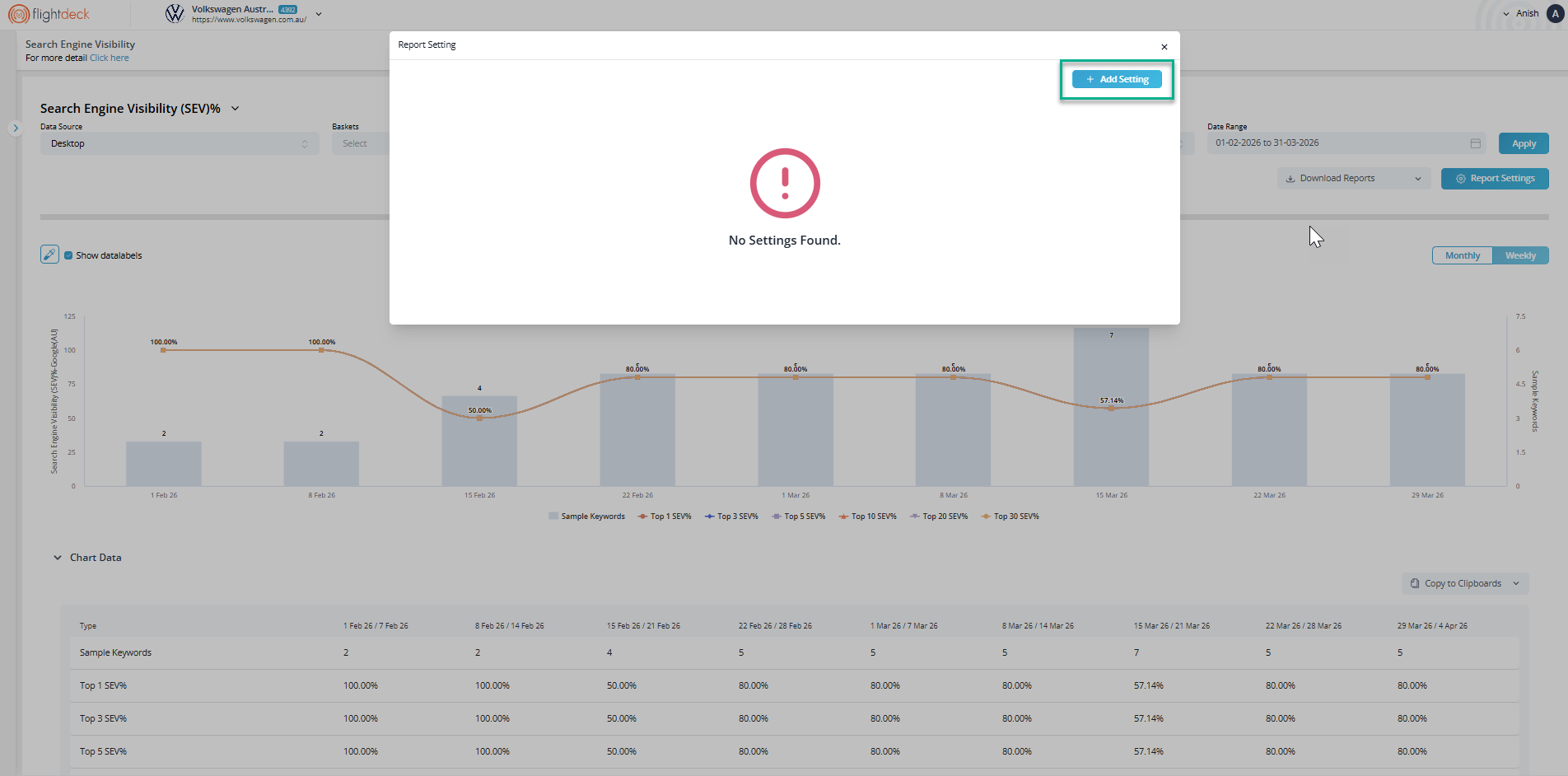
If no configuration exists, a No Settings Found message is displayed.
Select Add Setting to create a new report configuration.
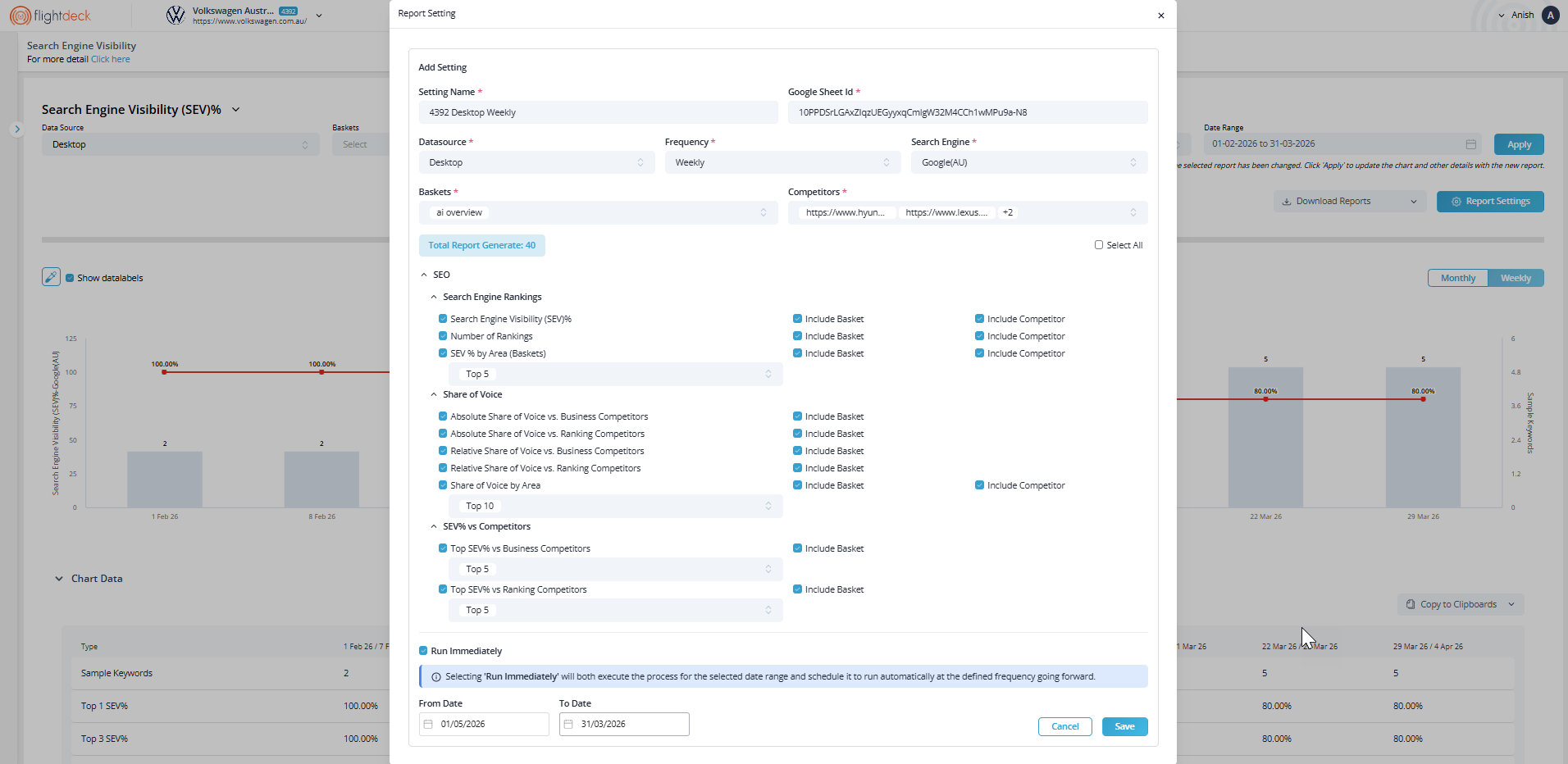
Setting Name
Enter a unique name to identify the report configuration.
Google Sheet ID
Specify the Google Sheet where report data will be generated or synchronized.

/d/ and /edit.
Data Source
Select the ranking dataset used for report generation.
Example:
- Desktop
Frequency
Define how often the report is being generated.
Available options may include:
- Daily
- Weekly
- Monthly
Search Engine
Select the search engine and regional database used for report calculations.
Example:
- Google (AU)
Baskets
Select the keyword baskets to include in the report.
Baskets help organize report data by keyword groups or categories.
Competitors
Select competitor domains to include in visibility, ranking, and share of voice comparisons.
Total Report Generate
Displays the total number of report modules currently selected.
This value updates automatically as report sections are added or removed.
SEO Report Sections
The SEO section contains reporting modules that can be enabled based on reporting requirements.
Search Engine Rankings
Available report options:
- Search Engine Visibility (SEV) %
- Number of Rankings
- SEV % by Area (Baskets)
Additional options may include:
- Include Basket
- Include Competitor
- Depth Selection
Share of Voice
Available report options:
- Absolute Share of Voice vs Business Competitors
- Absolute Share of Voice vs Ranking Competitors
- Relative Share of Voice vs Business Competitors
- Relative Share of Voice vs Ranking Competitors
- Share of Voice by Area
Additional options may include:
- Include Basket
- Include Competitor
- Depth Selection
SEV % vs Competitors
Available report options:
- Top SEV % vs Business Competitors
- Top SEV % vs Ranking Competitors
Additional options may include:
- Include Basket
- Depth Selection
Run Immediately : Generates the report immediately after the configuration is saved.
From Date : Defines the start date for report generation.
To Date : Defines the end date for report generation.
Actions
Save
Saves the report configuration.
Cancel
Closes the configuration without saving any changes.