User Prompt Generator
A. How to get to User Prompt Generator?
| 1. Click on the Reports menu from the side navigation | 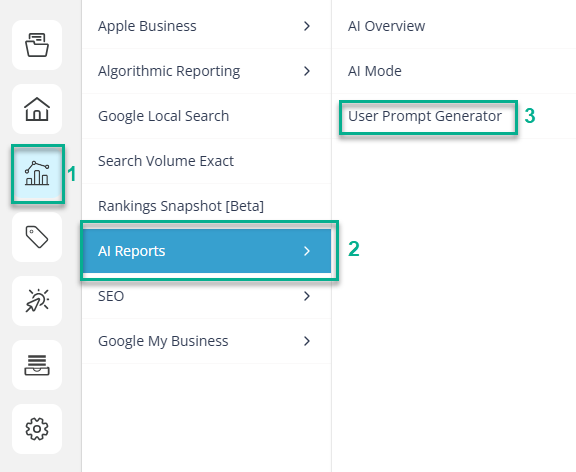 |
2. Click on AI Reports menu item. 3. Click on User Prompt Generator menu item. |
Now, you have been redirected to User Prompt Generator page.
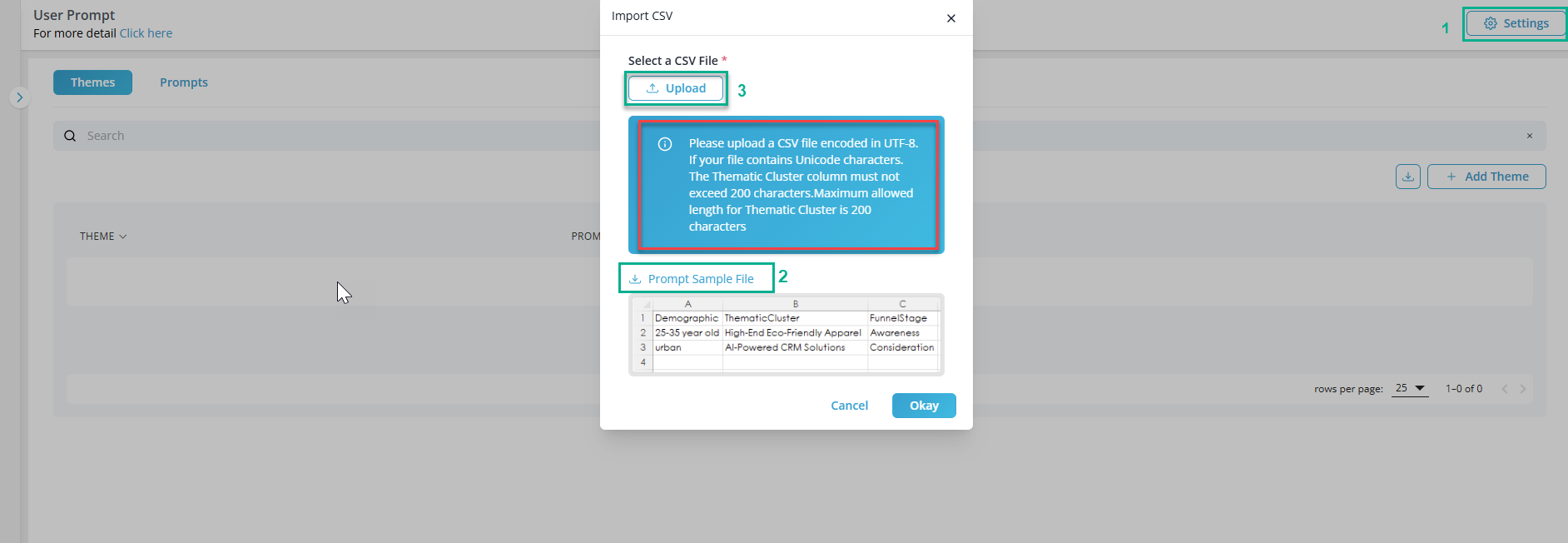
Once getting redirected to User Prompt Generator page, on top right side below profile section, we can see Setting button, clicking it will open a pop-up.
1. We can see a prompt Sample file, where sample is provided with CSV file encoded in UTF-8 format.
2. The core inputs for prompt generator are:
Demographic: Detailed profile of the target audience (e.g., "25-35-year-old, urban, female, $80k+ income").
Thematic Cluster: The general category or theme of the client's products (e.g., "High-End Eco-Friendly Apparel," "AI-Powered CRM Solutions").
Funnel Stage: The customer's stage in the buying journey (e.g., "Awareness," "Consideration," "Conversion," "Loyalty").
This input will be taken in a CSV template with columns as below:
Column 1 - Demography
Column 2 - Thematic Cluster
Column 3 - Funnel Stage

Note : Please upload a CSV file encoded in UTF-8. If your file contains Unicode characters.
The Thematic Cluster column must not exceed 200 characters. Maximum allowed length for Thematic Cluster is 200 characters.
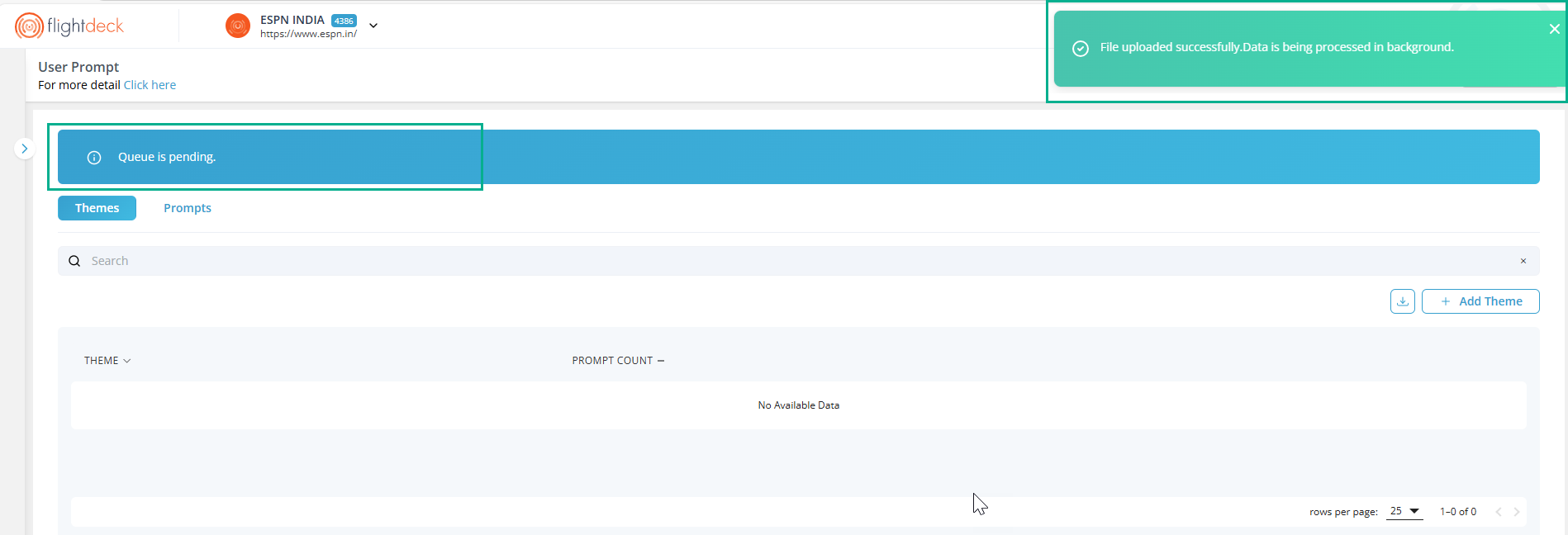
Once uploading a CSV file encoded in UTF-8, it will be in queue of processing on background to generate prompt as per our core inputs i.e. (demographic, thematic cluster and funnel stage).
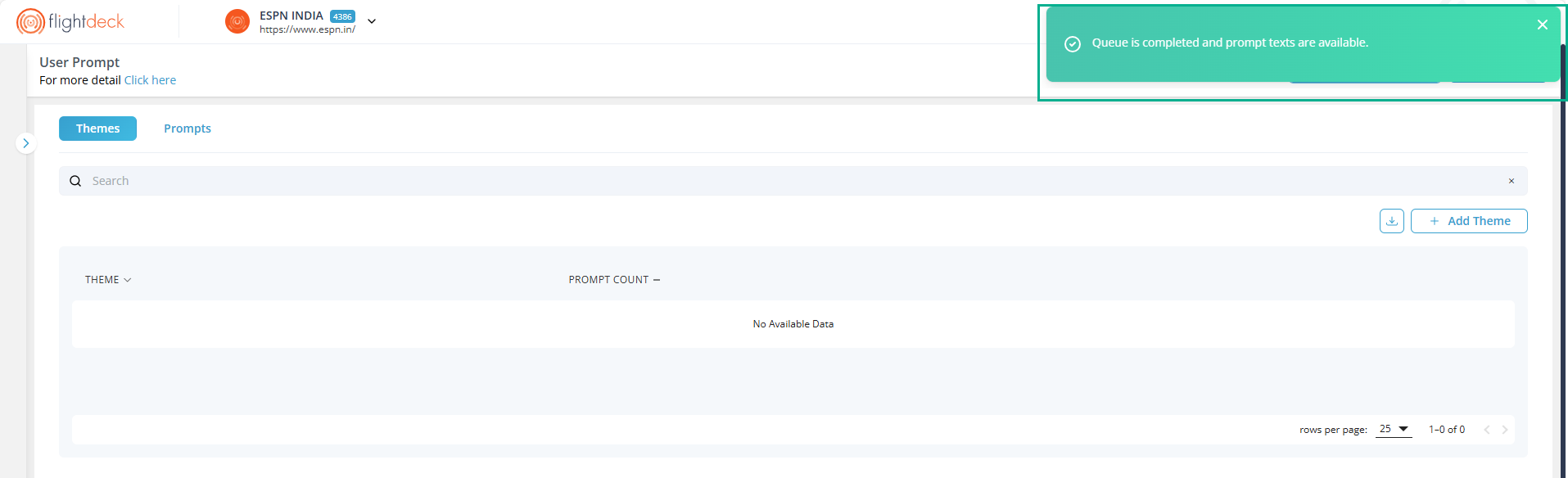
Once the Queue is completed, prompt text is available but only able to view clicking View Prompt Text button as shown in screenshot.
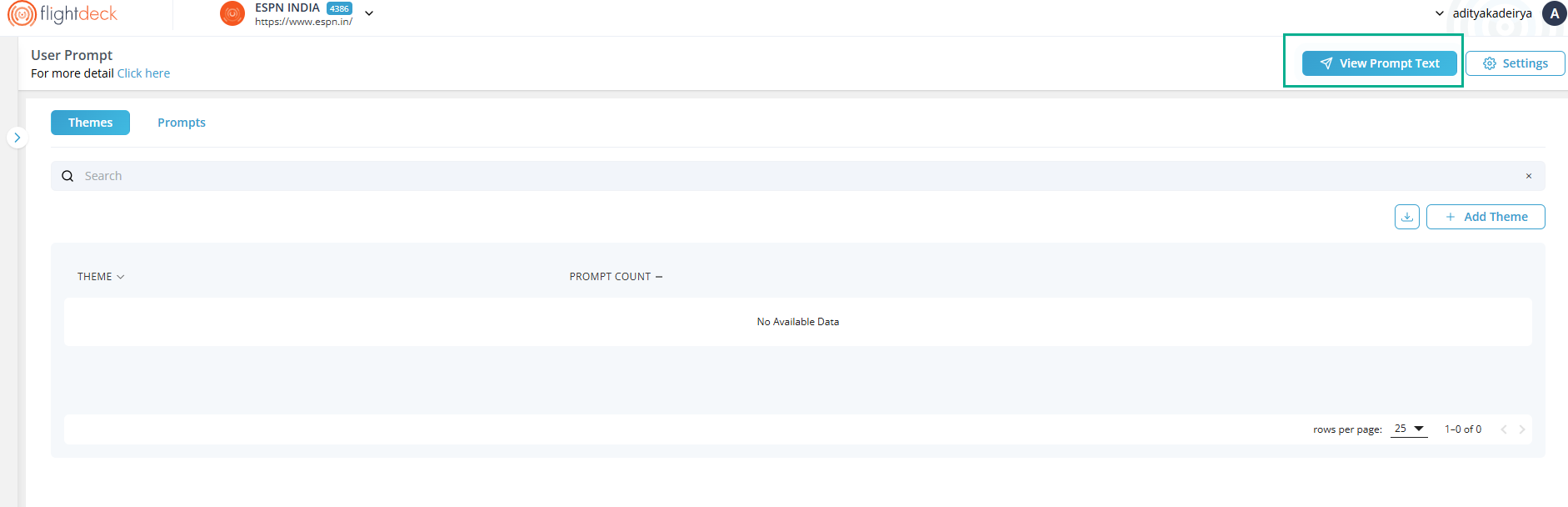
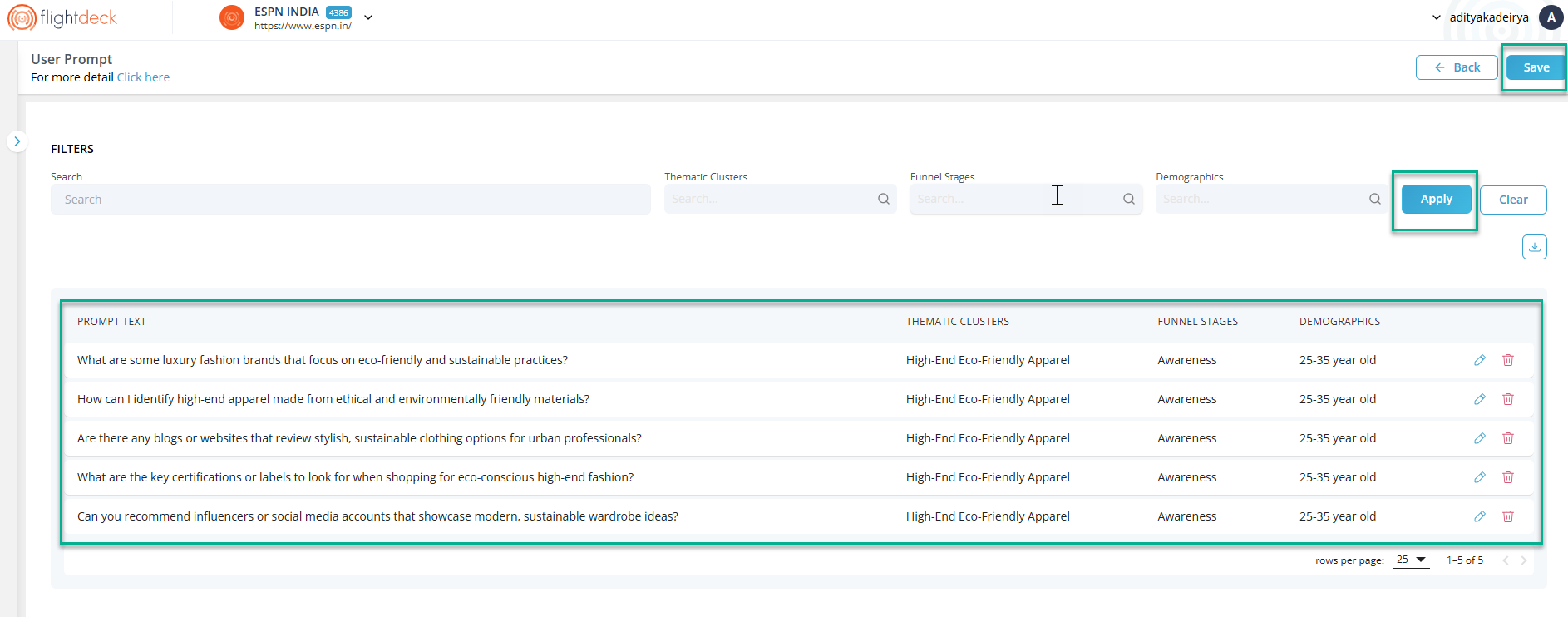
After clicking on View Prompt Text button, it will redirect to the page where filters regarding core inputs like thematic clusters, funnel stages and demographics are available. Applying those multi filter search will filter out the result as per desired. And we must Save in order to reflect the generated Prompts and Themes.
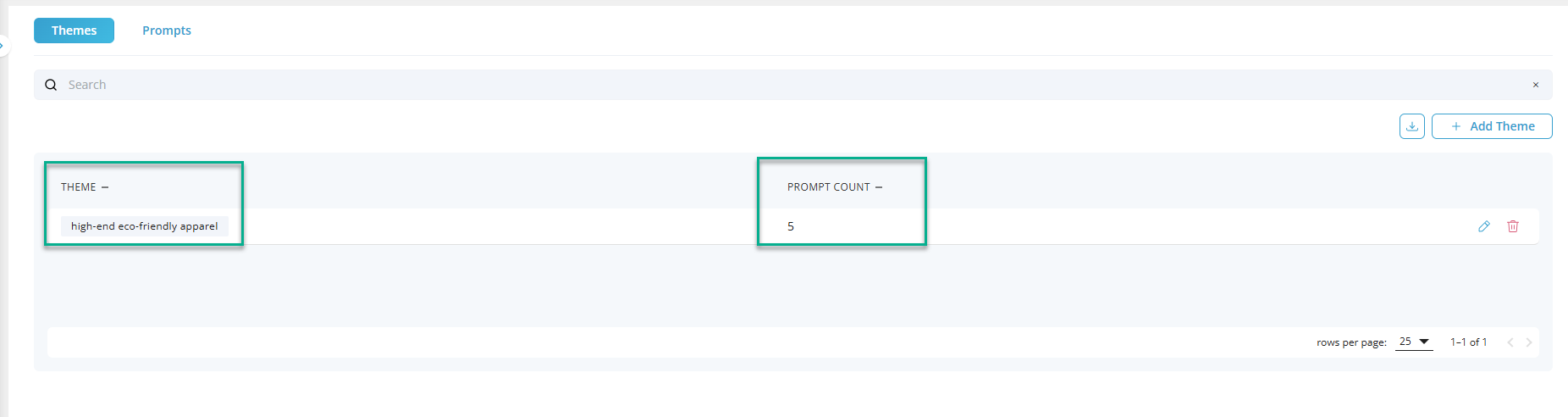
After getting Saved, data will be processed in background and progress will be calculated.
Following the process, the system displays the processed Themes and Prompts.
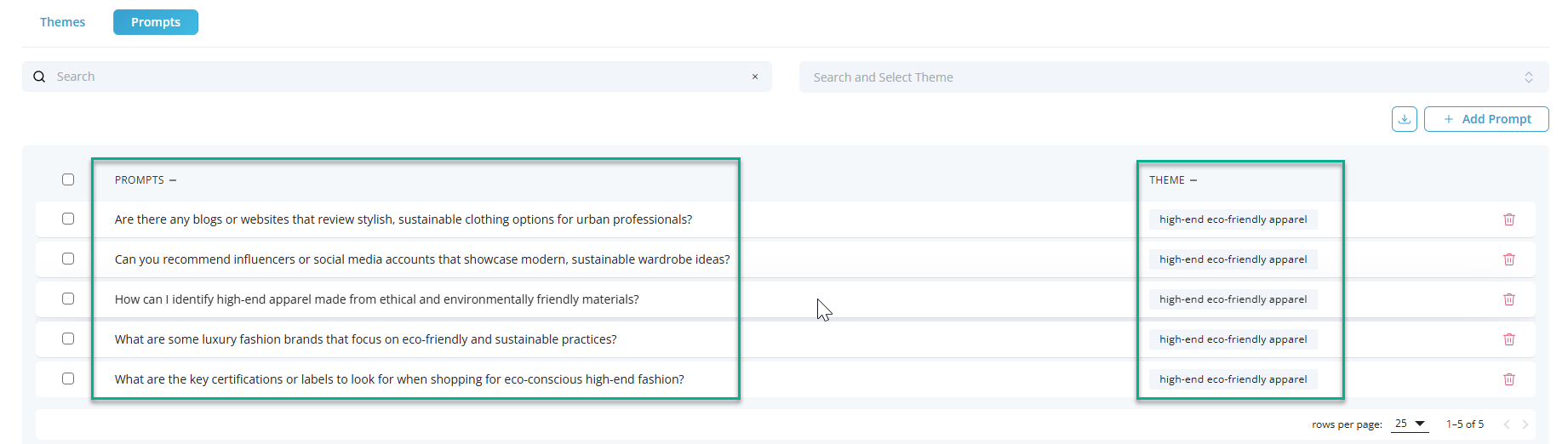
B. How to View the Generated Prompt?
| 1. Click on the Reports menu from the side navigation |
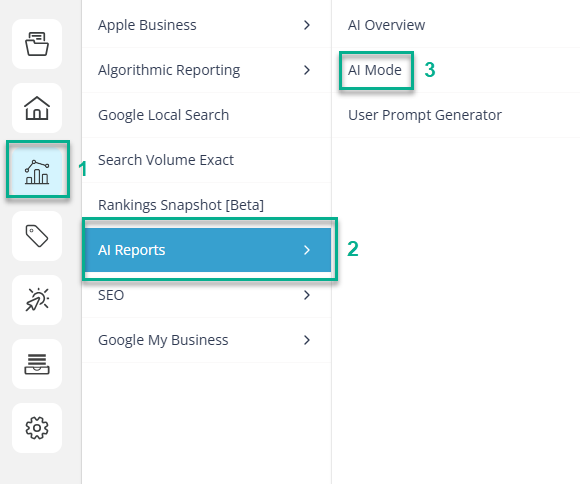 |
| 2. Click on AI Reports menu item. | |
| 3. Click on AI Mode menu item. |
But clicking on Setting will show a section,
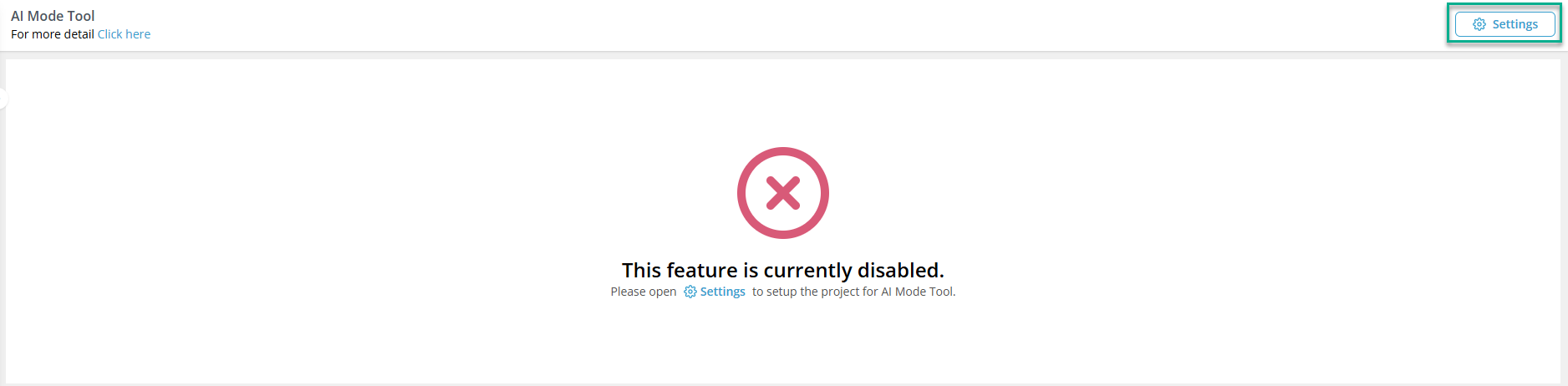
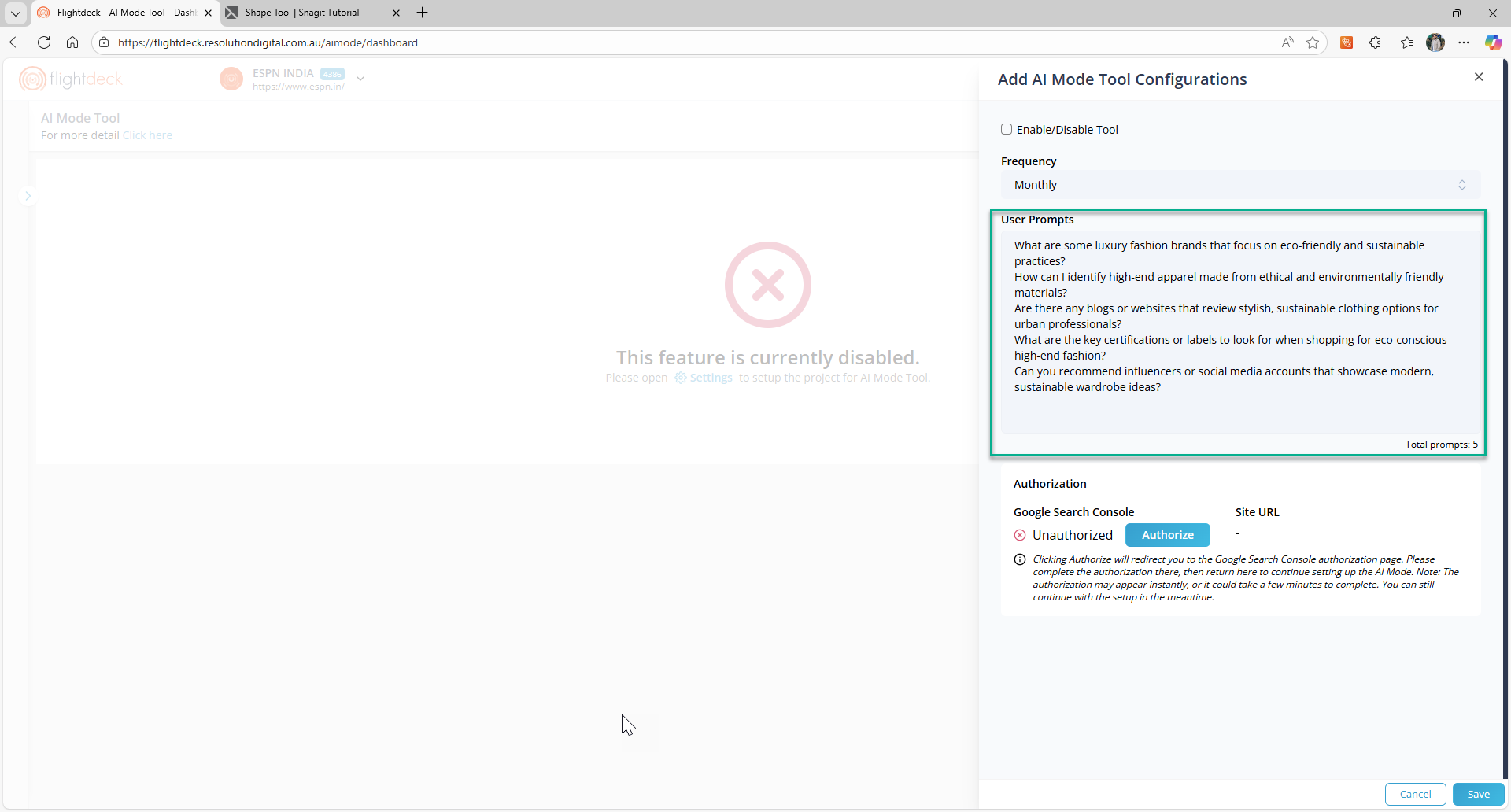
Following the steps, it shows an AI Mode Tool Configurations where all the generated User Prompts are visible.