---
title: "Create and Delete Location Showcase"
url: "https://flightdeck-help.resolutiondigital.com.au/en/article/location-showcase"
language: "en"
last_updated: "2025-07-08T06:50:26.256Z"
---
# Create and Delete Location Showcase
Here, you can create showcases for the location and have functionality to delete it.
## A. Create Location Showcase
In order to create showcase for the location; location needs to be submitted and verified in Apple's end.
| 1\. In Location List Page;
Click on **Add Showcase** button. | 
 |
| --- | --- |
| 2\. Click on **Add Showcase** button; the drawer will pop up. | |
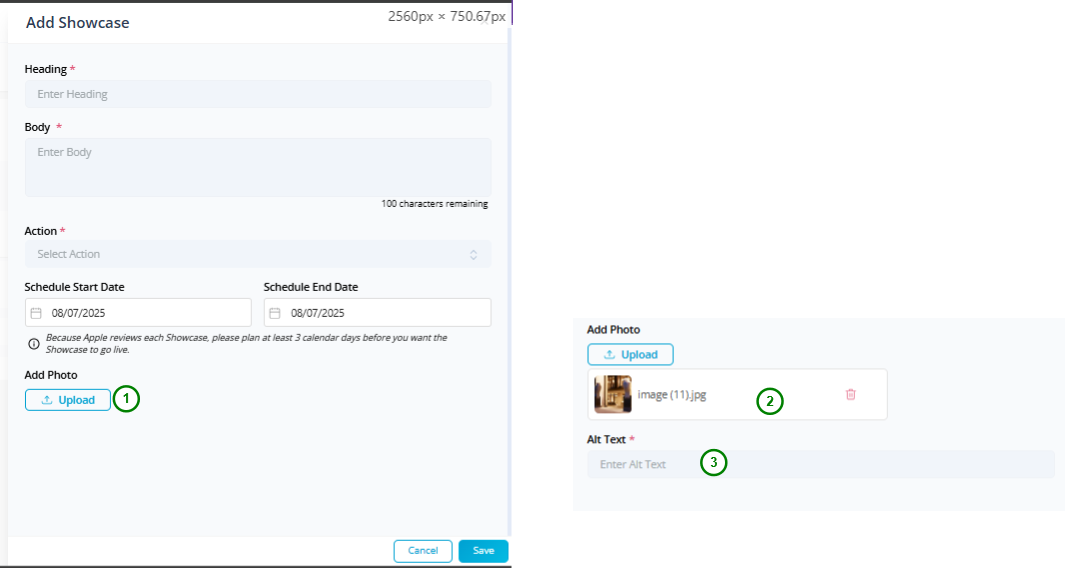
| 3\. Enter the Heading text; which should not exceed 38 characters.
Enter the Body text; which should not exceed 100 characters.
Select the CTA Actions from the drop-down; the CTAs are based on the primary category of the location.
Select the Start Date and End Date to Schedule the showcase to display in the location.
Upload the image; the image's dimensions is supposed to be 492 X 492 pixels.
Enter the Alt Text for the image | |
| 4\. Now, Click on **Save** button to make the changes. | |
The Showcase needs to some verification from Apple's End and will take time to get reflected in Business Connect UI.
* * *
## A. Delete Location Showcase
After the location showcase have been created will be listed in Apple Showcase UI.

Now, Click on **Delete** Button to delete the showcase.